TV Remote For Fire & TV Stick
AxenGrid LabsHouse & Home
4.7152.00 Reviews
- Version
- 1.6.3
- Installs
- 100.00K
- Age Rating
- Everyone
Screenshots
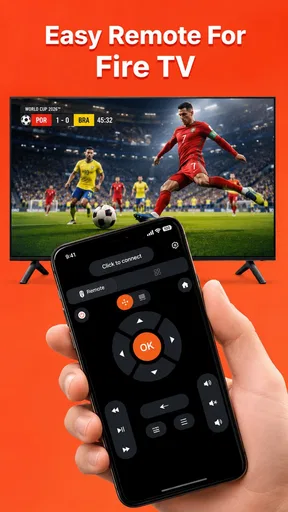
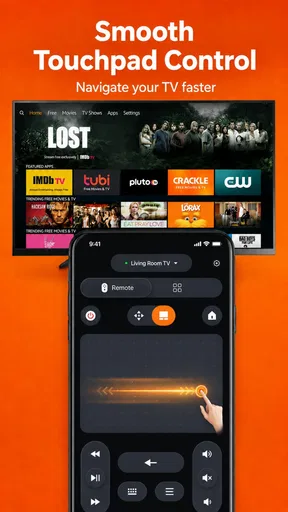
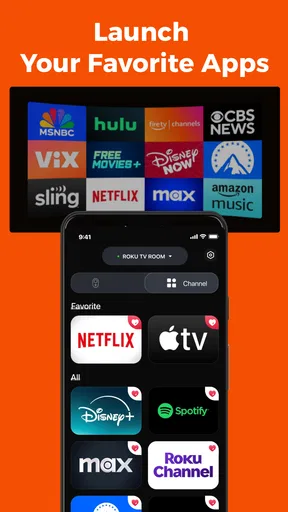
Our Review of TV Remote For Fire & TV Stick
 Analysis by Appyee
I approached TV Remote For Fire & TV Stick as the kind of app you install when the physical remote has disappeared between the sofa cushions, stopped responding, or simply feels less convenient than using the phone already in your hand. It is a free House & Home app from AxenGrid Labs, designed to control a FireStick and TV through a touchpad-style interface. After spending time with it, I found its appeal is less about replacing every button on a traditional remote and more about making the first connection and everyday navigation feel accessible.
The app has a 4.8 average from around 1.9 thousand ratings, and it has passed 100 thousand installs. Those figures suggest that the basic idea is landing well with many users, but they should not be mistaken for a guarantee that every television setup will behave identically. Network arrangements, TV models, and the way a FireStick is connected can all affect the experience. My recommendation is straightforward: if your main need is a phone-based controller for a FireStick, this is worth trying. If you need a universal remote for several unrelated devices, you may be better served by a broader remote-control solution.
What to expect before you connect anything
The store summary focuses on easy FireStick connection, TV remote control, and a touchpad. That tells you the central experience: this is not a streaming service, a smart-home dashboard, or an app for browsing films. Its job is to turn your phone into a practical control surface. I would think of it as a replacement for the handheld remote in specific situations rather than as a complete entertainment hub.
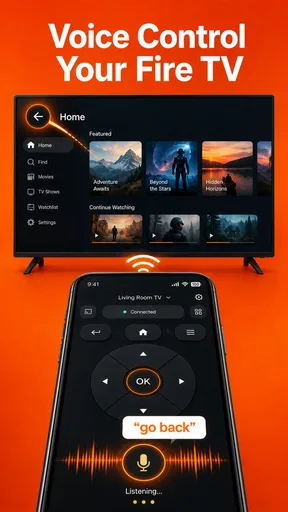
The touchpad approach is particularly useful for moving around interfaces where directional buttons can feel slow. Instead of repeatedly tapping left, right, up, and down, you can use the phone screen as a more fluid navigation area. That can be helpful when entering a search, moving through a long row of apps, or controlling the FireStick while sitting farther away from the television.
There is also a useful distinction between controlling a FireStick and controlling a TV. The FireStick is the streaming device that receives navigation commands, while the television handles the display and basic television functions. Readers often expect a phone remote to control every function of both devices automatically. In practice, the most satisfying experience is likely to come when your main goal is navigating the FireStick interface, with TV control treated as part of the broader convenience rather than an assumption that every physical button will be reproduced.
The best first expectation is simple: use it to regain control of your streaming setup, not to redesign the way your entire living room works. That mindset makes the app easier to judge fairly. It is most valuable when the original remote is inconvenient, misplaced, or shared by several people who would rather use their own phone.
Who will get the most from it
I can see this app being especially useful for someone who watches television casually and does not want to buy another physical remote. It also makes sense in a guest room, a rented home, or a household where the FireStick remote regularly migrates from one room to another. A phone-based controller is harder to lose when the phone is already beside you.
It may also help family members who find a small remote difficult to handle. A larger phone screen can make the control area easier to see, and the touchpad concept can feel more natural than aiming a remote at the television. That does not mean it will suit everyone. Someone who prefers tactile buttons, uses the TV without a FireStick, or needs highly specialized television controls may find a physical remote more dependable.
The app is marked for Everyone, so its intended audience is broad. It is free to install, while in-app purchases range from $4.99 to $17.99 per item. That makes it sensible to begin with the basic experience and decide whether any optional purchase is worthwhile only after you understand how well the connection works in your home. I would not pay immediately simply because a remote app sounds convenient; the real value depends on whether it connects cleanly to your particular setup.
What it is not the right choice for
I would skip this app if your priority is a single controller for a complicated collection of devices from several brands. A dedicated universal remote may offer clearer device profiles, physical buttons, or more predictable control over amplifiers, disc players, and other equipment. This app is focused on the FireStick and TV relationship, so it should not be evaluated as a replacement for a full home-theater controller.
I would also hesitate if you strongly dislike touch controls. A touchpad is convenient for some actions, but it does not provide the physical confirmation you get from clicking a button. When you are looking down at a phone, it is possible to lose track of what is selected on the television. That is a small but real trade-off, especially when you are trying to navigate quickly in a dark room.
From installation to the first useful command
I’d treat the first connection as a small setup task, not a test of every control at once. Getting the FireStick visible on the television and checking that the phone can move one on-screen selection gives me a clear baseline before I rely on the app. From there, the next section looks at the mix-ups that can make a working connection seem less dependable than it is.
Start with the room, not the app
Before opening the controller, I would make the setup as simple as possible. Put the phone and the FireStick on the same home network if your arrangement allows it, and make sure the television is displaying the FireStick input. This preparation matters because a remote app cannot feel successful if the phone is searching while the television is showing a different source.
It is also worth keeping the physical remote nearby during the first attempt. That is not because the app is necessarily difficult, but because the original remote gives you a fallback if the FireStick needs attention before the phone can take over. Once the app is connected and you have completed a meaningful action, you can decide whether the physical remote still needs to stay within reach.
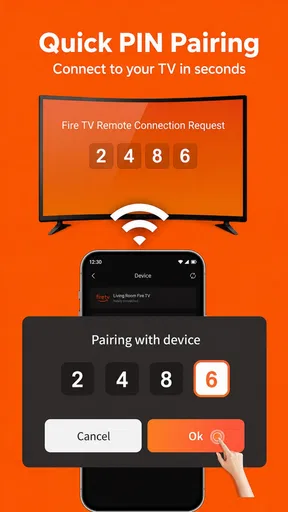
When you open the app, look for the device-selection or connection step rather than tapping around randomly. The exact appearance can change between releases, but the current version is 1.4.2, and the important principle remains the same: identify the FireStick or TV that you want to control, then wait for the connection to complete before testing navigation.
Make the first test deliberately small
For the first test, I would not begin by trying to type a long film title or change several settings. Start with one visible action, such as moving the selection on the FireStick home screen. A small movement confirms more than a complicated task because you can immediately see whether the command reached the television.
Once movement works, try selecting the item that is already highlighted. Then return to the home screen or move to a familiar area. This sequence gives you a quick answer to the most important question: can the phone reliably send basic navigation commands to the FireStick? If the answer is yes, the rest of the learning curve becomes much less intimidating.
The touchpad deserves a little patience. Swipe gently and watch how the selection responds. If you make large, fast gestures at first, you may move farther than intended and assume the app is inaccurate. I found that controlled movements are more useful than treating the screen like a trackpad on a laptop. For selecting, pause after the highlight reaches the item you want, then use the selection control rather than continuing to swipe.
Use a realistic first success
A good everyday test is to open a familiar streaming app from the FireStick home screen and start something you already know how to find. This is better than testing with an obscure menu because you can focus on the controller rather than wondering whether the television is behaving normally.
Imagine arriving home and realizing the FireStick remote is in another room. Your phone is already beside you, the television is on the correct input, and you open the controller. After connecting, you use the touchpad to move across the home screen, select your usual app, and start a program. That is the moment the app proves its value. It has not added a new streaming catalog, but it has removed the small interruption that might otherwise send you searching through the house.
For a second test, try pausing and resuming something already playing. This helps you understand whether the controls feel comfortable during normal viewing, where you are likely to use the app most often. If navigation feels smooth but playback controls feel awkward, you can still use the app selectively rather than abandoning it altogether.
Why the network is part of the experience
Remote-control apps depend on communication between the phone and the device being controlled. That means a connection problem can look like an app problem even when the issue is the arrangement of the devices on the network. If the FireStick does not appear, check that the phone is not using a different connection from the one serving the streaming device. Guest networks and separated bands can sometimes make devices less visible to one another.
I would also avoid testing immediately after changing several network settings. Make one adjustment at a time, reopen the app, and see whether the device becomes available. This is a more reliable troubleshooting habit than repeatedly tapping the connection button and hoping the result changes.
Common confusion during everyday use
In everyday use, I find it helps to distinguish a FireStick navigation problem from a television-control expectation, since the screen shows both devices’ roles at once. I also pay attention to how quickly I swipe: short gestures and a pause before selecting make touch navigation easier to read. The next section turns those lessons into a routine that fits real viewing habits.
Confusing the TV screen with the FireStick interface
The television displays the FireStick interface, so it is easy to think every on-screen element belongs directly to the TV. In reality, the app’s most important job is guiding the streaming device. If you are trying to navigate the FireStick home screen, use the touchpad and selection controls. If you are attempting a television-specific function, the result may depend on what the connected equipment supports.
This distinction matters when deciding whether the app has failed. If you can move through the FireStick interface but cannot perform a particular TV function, that does not necessarily mean the core remote connection is broken. I would first separate the task into two questions: can the phone control the FireStick, and can it perform the exact television command you have in mind?
Expecting touch navigation to behave like buttons
A physical remote gives you a clear sense of each press. A touchpad gives you freedom of movement but less tactile feedback. New users often swipe too quickly, then correct too aggressively. My practical advice is to make short gestures, wait for the highlight to settle, and use a deliberate selection action. That rhythm reduces accidental launches and makes the interface feel more predictable.
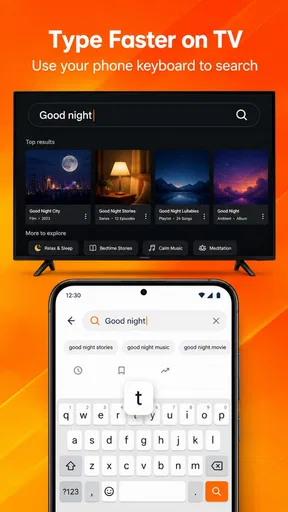
For text entry, the phone can be more comfortable than an on-screen keyboard, but it is still important to check where the cursor is before entering anything. If the FireStick is not focused on a text field, typing may not produce the result you expect. I would first open the search field on the television, confirm the cursor is active, and only then use the phone for input if that option is presented.
When the first connection does not work
If the app cannot find the device, I would follow a calm sequence: confirm the FireStick input is visible, check the phone’s network connection, close and reopen the controller, and try the connection again. If the physical remote is available, use it to make sure the FireStick is awake and responsive. This helps distinguish a sleeping or unresponsive streaming device from a phone-side issue.
Another useful habit is to avoid changing the television input while the app is searching. Switching sources can make it seem as though the command did nothing, when the FireStick is simply no longer the visible screen. Return to the correct input before judging the result.
There is also a practical limit to what a phone remote can offer when the phone battery is low, the phone is being used for another task, or someone else needs the handset. A physical remote remains better for shared households where several people want immediate control at the same time. The app is convenient, but it makes your phone part of the control chain.
Understanding the paid options
Because the app is free with in-app purchases, I would treat the basic installation as a trial of the actual connection and navigation experience. The listed purchase range is $4.99 to $17.99 per item, so the difference between optional choices may be meaningful for some users. Before spending money, decide what problem you are trying to solve: occasional backup control, daily FireStick use, or a more complete remote experience.
If the free experience already handles your normal routine, paying may not be necessary. If an optional feature removes a specific annoyance that you encounter every day, it may be easier to justify. I would avoid purchasing simply to compensate for a network issue, because payment will not fix a phone and FireStick that cannot communicate reliably.
Building a smoother routine after the first success
Once the basic commands work, I wouldn’t force the phone to replace the handheld remote for every task. I’d use it where its larger touch surface is useful, while keeping a physical option in mind for shared viewing or quick button presses. The next section considers how to make that division feel natural rather than like an extra chore.
Keep the controller ready for the moments that matter
The most useful way to adopt this app is not necessarily to use it for every button press. I would keep it as the fast option for situations where the physical remote is unavailable, when I want to search using the phone, or when I am already holding the phone while watching something. That selective approach gives you the convenience of a mobile controller without making you dependent on it for every interaction.
It can also work well as a backup in a guest room. Instead of explaining where a small remote is stored, you can show a visitor how to open the app and connect to the visible FireStick. The trade-off is that the visitor still needs a compatible phone and a suitable network connection, so this is more practical for people who are comfortable with basic app setup.
Use it differently for navigation and playback
Navigation is where the touchpad concept can save time, especially across rows of content or app icons. Playback is more about quick, precise commands. If you prefer physical feedback for pausing, resuming, or changing volume, you might use the app to reach the right content and then keep the television’s own controls nearby for the rest.
This division of labor is one of the more useful trade-offs. A phone screen is flexible and can be easier for browsing, while a traditional remote is often faster when your hand already knows where a button is. Neither method has to replace the other completely.
Think about privacy and shared-device habits
A phone remote can be more personal than a shared physical controller. That is convenient when you want to control the television without asking where the remote is, but it also means the person holding the phone has immediate influence over what appears on the screen. In a family setting, agree on who is controlling the FireStick before starting a film or show. This sounds minor, yet it prevents the familiar problem of two people sending competing commands.
I would also avoid handing the phone to a child while important settings or account screens are open. The Everyone age rating describes the app’s broad suitability, but the FireStick itself may display account, purchase, or configuration areas. The safe habit is to use the controller for the intended viewing task and keep account management separate.
How it compares with the usual alternatives
The usual alternative is the original FireStick remote. That remote wins on tactile feedback, independence from your phone, and quick access when you are watching in a dark room. The app wins when the physical remote is missing, when you want a larger touch surface, or when phone-based navigation feels more natural than directional buttons.
A television manufacturer’s remote app may be preferable if your main need is controlling the TV itself rather than the FireStick. A universal remote may be the better choice for a sound system and several other devices. Meanwhile, a cheap replacement physical remote can be more sensible for a household that wants simple, shared, button-based control without relying on a phone.
Where this app fits best is the middle ground: you want a convenient mobile controller centered on FireStick use, but you do not need a complicated home-theater command system. Its focused purpose is a strength when your setup matches it and a limitation when it does not.
My recommendation after using it
TV Remote For Fire & TV Stick is a practical app for a very recognizable problem. The path to value is short when the phone and FireStick are ready to communicate: connect, move the selection, choose a familiar app, and confirm that playback responds. That first successful action is more important than exploring every control at once.
I like the touchpad idea for browsing and appreciate that the app is free to try. The main friction comes from network dependence, the reduced tactile feedback of a phone screen, and the possibility that users expect universal TV control when their real need is FireStick navigation. Those are not reasons to dismiss it, but they are reasons to test it carefully before treating it as your only remote.
AxenGrid Labs has positioned this as an accessible House & Home tool rather than an elaborate entertainment platform. With a 4.8 average and more than 100 thousand installs, it has clearly attracted substantial interest, while the current version, 1.4.2, gives new users a defined starting point. I would recommend it to anyone who wants a backup or everyday phone remote for a FireStick and is comfortable with touch controls. I would choose a physical or universal alternative for a multi-device setup, a button-first household, or anyone who cannot keep the phone and streaming device connected to the same network.
My final advice is to judge it by one ordinary evening rather than by the feature list. Install it, connect it with the television already showing the FireStick, open a familiar app, and pause something you are watching. If those actions feel reliable and comfortable, the app has earned a place on your phone. If the connection is inconsistent or the touchpad feels less precise than the remote you already own, there is no reason to force the change.
Privacy and Permissions
See what permissions an app requests and how it handles your data.
- Microphone
- record audio
- Wi-Fi connection information
- view Wi-Fi connections
- Other
- view network connections, allow Wi-Fi Multicast reception, full network access, control vibration, prevent device from sleeping, Google Play license check
Verdict
Strengths of TV Remote For Fire & TV Stick
- Works with Fire TV and compatible Fire TV Stick models
- Quick setup when your phone and TV share the same Wi‑Fi
- Touchpad navigation makes browsing menus convenient
- Includes keyboard input for faster searches and text entry
- Useful backup when the physical remote is misplaced
Limitations of TV Remote For Fire & TV Stick
- Requires a stable Wi‑Fi connection to communicate with the TV
- Some features may vary between Fire TV device models
- Contains ads or optional paid features in some versions
- Typing and gestures can feel less precise than a physical remote
- Phone battery drains faster during extended remote use
Similar Picks in This Category
View All
Universal TV Remote Control
CodeMatics Media Solutions3.9

AlfredCamera Home Security app
Alfred Systems Inc.4.7

Planner 5D: AI Home Design
Planner 5D4.5

Universal Tv Remote-Cast to TV
One Music Player4.1

Zillow: Homes for Sale & Rent
Zillow Group4.8

99acres Buy/Rent/Sell Property
infoedge.com4.3
Frequently Asked Questions
What is TV Remote For Fire & TV Stick, and how does it work?
TV Remote For Fire & TV Stick is a mobile remote-control app designed to operate compatible Amazon Fire TV devices and Fire TV Stick models from an Android or iOS phone. After installing it, your phone generally needs to be connected to the same Wi-Fi network as the Fire TV. The app then searches for available devices and provides virtual navigation, selection, playback, and other remote functions.
Is TV Remote For Fire & TV Stick compatible with every Fire TV device?
Compatibility can vary depending on the Fire TV model, operating-system version, phone, and app version. The application is mainly intended for Amazon Fire TV and Fire TV Stick devices, but some features may not work identically across all models. Before downloading, check the app-store description and supported-device information. If your Fire TV is not detected, updating both devices and restarting the network may help.
Does my phone need to be connected to the same Wi-Fi network as the Fire TV Stick?
In most cases, yes. A phone-based Fire TV remote normally communicates with the television or streaming stick through the local Wi-Fi network, so both devices must be connected to the same network. Mobile data usually cannot replace this connection. If pairing fails, verify the Wi-Fi name, disable any VPN, avoid guest networks, and restart the app, router, and Fire TV device.
Can the app replace the original Fire TV remote completely?
The app can be a convenient replacement for everyday controls such as directional navigation, selecting items, returning to previous screens, starting playback, and adjusting basic functions. However, the exact feature set depends on the version of the app and your Fire TV device. Some users may still prefer the physical remote for voice commands, quick access buttons, or situations where the phone battery is low.
Is TV Remote For Fire & TV Stick free and safe to use?
The application may be available as a free download, although it can include advertisements, optional purchases, or feature restrictions depending on the Android or iOS version. Review the store listing carefully before installing and check the permissions requested by the app. Because the remote communicates over your home network, download it only from an official app store and avoid unofficial modified versions.
